How to Set Up an eSIM for International Travel (2026)
Switching to an eSIM is the easiest way to stay connected when you travel abroad — no SIM swaps at the airport, no hunting for a local store, and no shocking roaming bills when you get home. But if you have never used one, the setup can feel confusing. This guide walks you through exactly how to set up an eSIM for international travel, step by step, on both iPhone and Android, so you are online the moment you land.
It only takes a few minutes, and you can do most of it before you even leave home. Let's get you connected.
What is an eSIM?
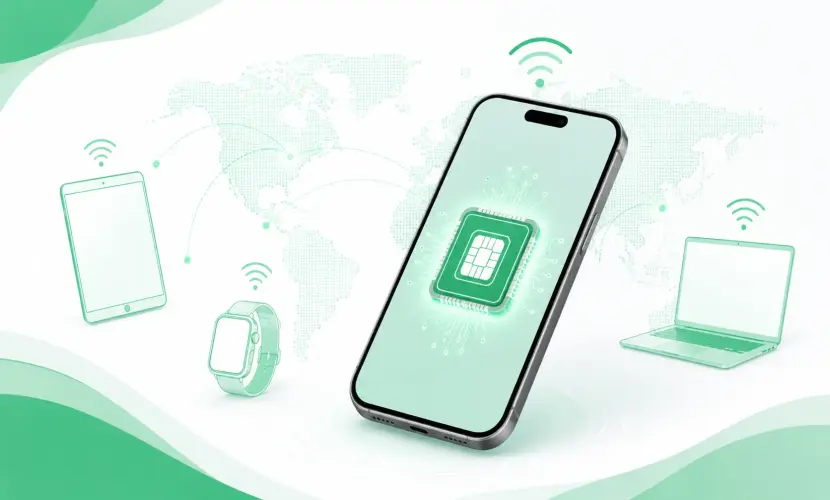
An eSIM (embedded SIM) is a digital SIM card built directly into your phone. Instead of inserting a physical plastic SIM, you download a mobile data plan over the internet and activate it in your phone's settings. There is nothing to ship and nothing to lose.
For travelers, this means you can buy a local or regional data plan online before your trip and switch to it instantly when you arrive — while keeping your home number active on your existing SIM. With Instant eSIM, your plan is delivered by email within minutes of purchase.
Why use an eSIM when traveling internationally?
Here is why millions of travelers now choose an eSIM over roaming or buying a SIM abroad:
- Instant activation — buy online and connect in minutes, no kiosk queues.
- No surprise roaming bills — you pay one upfront price for your data.
- Keep your home number — calls and texts still arrive on your regular SIM.
- Travel across borders — regional and global plans cover multiple countries on one eSIM.
- Nothing to lose — no tiny plastic SIM to swap, drop, or misplace.
eSIM vs Roaming vs Local SIM card
| What matters | Travel eSIM | Carrier roaming | Local SIM card |
|---|---|---|---|
| Setup time | A few minutes, online | Already on, but pricey | Find a store on arrival |
| Typical cost | Low, fixed in advance | High, often per MB | Low, but cash + hassle |
| Keep your number | Yes | Yes | No (number changes) |
| Multi-country use | Yes, regional plans | Yes, at high rates | No, one country only |
| Plastic SIM needed | No | No | Yes |
Before you start: eSIM compatibility checklist
Run through this quick checklist before you buy or install your plan:
- Your phone supports eSIM. Most recent models do — iPhone XS and newer, and recent Samsung Galaxy, Google Pixel, and other flagship Android phones.
- Your phone is carrier-unlocked. A phone locked to one carrier may block other eSIMs.
- You have stable Wi-Fi. You need internet to download and install the eSIM profile.
- Your plan is ready. After purchase you will receive a QR code or an activation code by email.
Quick tip: Not sure if your phone supports eSIM? On iPhone, open Settings > Cellular and look for "Add eSIM." On Android, search "SIM" in Settings — if you see an option to download or add an eSIM, you're good to go.
How to set up an eSIM on iPhone
Do this on Wi-Fi before your trip whenever possible:
- Connect your iPhone to a stable Wi-Fi network.
- Buy your data plan from Instant eSIM and open the QR code / activation email.
- Go to Settings > Cellular (or Mobile Data) and tap Add eSIM.
- Choose Use QR Code and scan it. (Tap Enter Details Manually if you only have a code.)
- Label the plan something clear like "Travel" so it's easy to find.
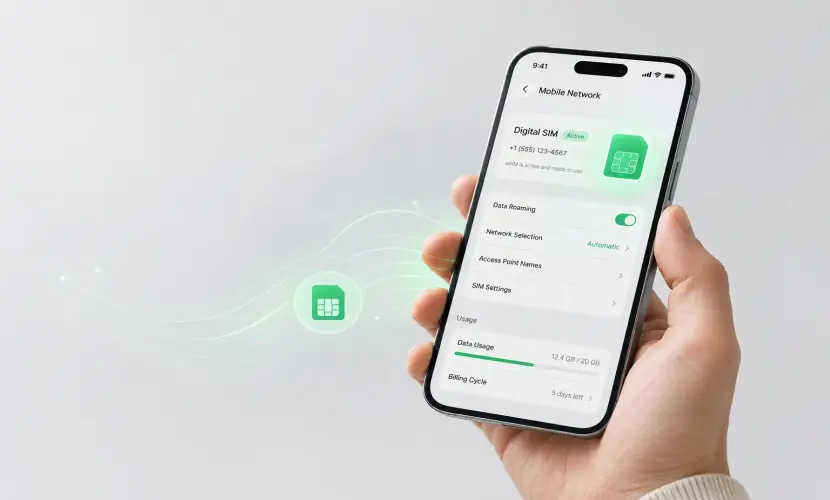
- Set the eSIM as your line for Cellular Data, and turn on Data Roaming for that eSIM line (this is required — it connects to the partner network, not your home carrier's roaming).
- You're set. When you arrive, your iPhone connects automatically.
How to set up an eSIM on Android
Exact wording varies slightly by brand (Samsung, Pixel, etc.), but the steps are the same:
- Connect to Wi-Fi.
- Purchase your plan and open your QR code / activation email.
- Open Settings > Network & internet > SIMs (or Connections > SIM manager on Samsung).
- Tap Add eSIM or Download a SIM instead, then scan the QR code.
- Confirm and activate the plan, then give it a name.
- Set the eSIM as your mobile data SIM and enable roaming for that line.
How to activate your eSIM when you land
- Check your start date. Many plans activate on first network connection abroad; some start on a date you choose. Your confirmation email tells you which.
- Turn off data on your home SIM. This is the simple way to avoid accidental roaming charges from your regular carrier.
- Select the eSIM for mobile data and make sure data roaming is on for the eSIM line.
- Restart your phone if you don't see a signal within a few minutes.
Troubleshooting common eSIM issues
- No connection abroad: Confirm data roaming is enabled on the eSIM line, toggle Airplane Mode on and off, then restart.
- QR code won't scan: Use the manual option and enter the SM-DP+ address and activation code from your email.
- "eSIM cannot be added": Your phone may be carrier-locked, or you've reached the maximum number of stored eSIM profiles — delete an old one and try again.
- Slow speeds: Set your network mode to 4G/5G, or manually select an available network in settings.
Frequently asked questions
Can I use an eSIM and my normal SIM at the same time?
Yes. Most modern phones are dual-SIM, so you can keep your home number active on your physical SIM for calls and texts while using the eSIM for data abroad.
Do I need to remove my physical SIM?
No. Your physical SIM stays in your phone. You simply choose the eSIM as your data line and switch back when you get home.
Will one eSIM work in multiple countries?
Yes, if you choose a regional or global plan. A single eSIM can cover an entire trip across several countries — ideal for multi-stop travel in Europe, Asia, or beyond.
Is an eSIM cheaper than roaming?
For most travelers, yes — usually far cheaper than standard carrier roaming, because you pay one fixed price for your data instead of high per-use rates.
Can I reuse my eSIM on my next trip?
Often, yes. Many plans let you top up the same eSIM profile for your next destination, so you don't have to install a new one each time. Check the details of your specific plan.
Ready to stay connected abroad?
Now that you know how to set it up, the rest takes minutes. Browse Instant eSIM data plans for your destination, get your QR code by email, and land already connected.
Browse eSIM plans by destination →New to eSIMs? Read Top 7 Reasons Travelers Are Switching to eSIM.